




Building an environment website without coding is no longer a problem. You can achieve it by using a drag-and-drop website builder built for Gutenberg, like GutenKit.
You can create an environment website from scratch through the various block-based patterns. If you prefer a fast website creation, GutenKit has pre-built templates dedicated to environment-specific businesses or services.
So, if you are an expert in landscaping, or an environmental advocate, or into e-commerce, this blog is right for you. Here, you’ll learn how to create an environment website without coding with the use of GutenKit.
Quick Overview
Building an environmetal website without coding is very simple with GutenKit. A user-friendly with high customization options approach.
The steps include:
➡️ Installing and activating GutenKit plugin:
1. Install GutenKit directly in WordPress repository and activate.
2. You have the option to download the plugin from wordpress.org and simply upload the plugin in WordPress website.
➡️ Opening a new page:
1. Open a new page for the environmental website.
➡️ Adding an environmental website template:
1. Click on the GutenKit template library button at the top of the Guitenberg editor.
2. Proceed to templates tab and check the Environmental box to filter the templates.
3. Choose the best template suited for your goal.
4. Live preview the template to see the actual website and import the template to the Gutenberg editor.
➡️ Customizing the environmental template:
1. Replace the text information and customize it based on the desired theme.
2. Upload images or videos that would add credibility to the brand or services.
3. Adjust the website elements, like typography, text color, and background color, etc. to match the desired environmental theme.
4. Add call-to-action buttons like “Contact Us” and “Request A Quote Form.”
5. Embed the WordPress form in the website template.
6. Add block-based patterns like Header, Func Fact, and Google Map to have a full environmental website.
➡️ Preview and publish the website:
1. Preview the website before going live to ensure that every element is working perfectly, like buttons, links, etc.
2. Publish the website if everything looks perfect.
Table of Contents
What is the Easiest No-code Website Builder for Environmental Websites?
GutenKit is the easiest no-code website builder for Gutenberg. Here’s why:
- You can design pages visually without coding using its intuitive blocks. You don’t need to learn about HTML, CSS, or JavaScript. Even if you need to use custom CSS, GutenKit has a dedicated module to ensure that CSS will not be a burden.
- GutenKit offers professionally designed templates suitable for environmental blogs or eco-businesses. You can also create a professional environmental website using the block-based patterns.
- It is lightweight and fast, reducing data usage so your website loads fast at all times. You can disable the blocks and modules that are not necessary to ensure an optimum site speed.
- You have full control over customization and design. Templates can be adjusted and all their elements, like colors, typography, and layouts.
- Works perfectly with WordPress and other plugins like form builders like MetForm, donation plugins like FundEngine, or newsletter tools to grow your audience and impact like EmailKit.
How to Create an Environmental Website Without Coding
Here, we list all the tools you need to start with your environmental website.
1. Domain name, which you can easily find online, like GoDaddy. There are plenty of options available for you to explore.
2. Web hosting to store your website files, and WordPress.com is the best choice.
3. Page/web builder plugin to design your website, and GutenKit is the perfect choice, especially for beginners.
Now, let’s walk you through the process of building your own environmental website using GutenKit in five simple steps. But in this tutorial, we’ll use the pre-built template of GutenKit to create an environmental website.
Step 1: Install and Activate GutenKit
The very first step to create your environmental website is to install the GutenKit plugin on your WordPress site. You can navigate to your WordPress dashboard and go to Plugins → Add New. Search for “GutenKit” in the search bar and click Install Now. The last step is to activate the plugin.
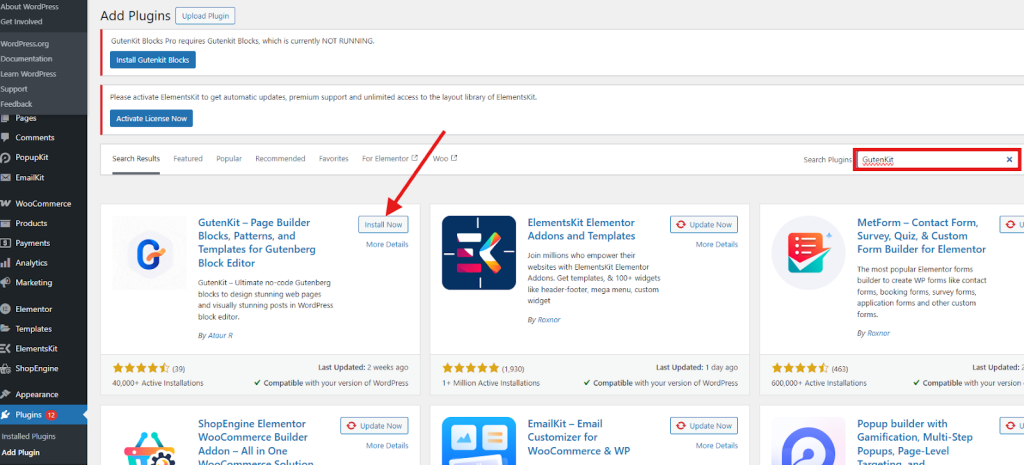
Once activated, GutenKit enhances your WordPress editor with new design blocks and various stunning ready-made templates, including those for environmentally specific design.
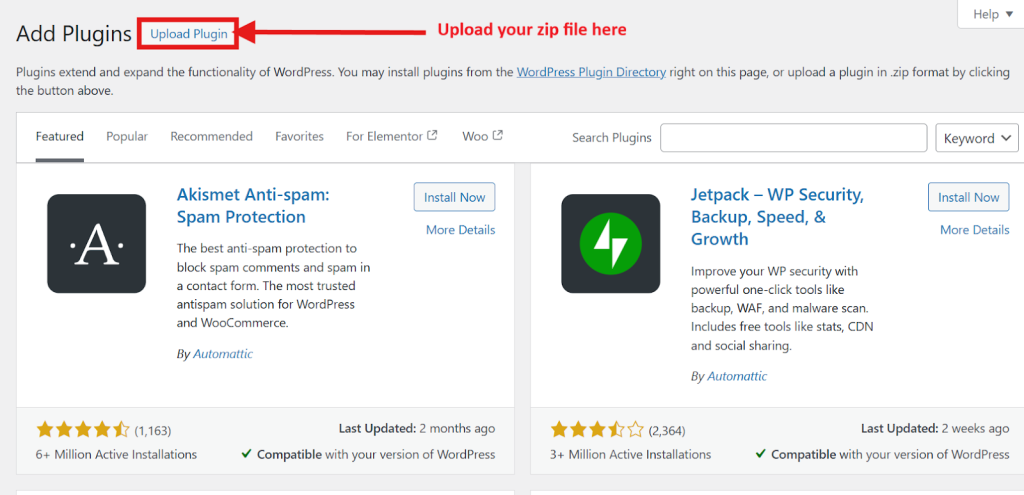
But if you download the plugin from WordPress.org, you can simply upload the zip file and activate it.
Note: You don’t need a Pro version of GutenKit. Pre-built templates for environmentally specific design are offered for free.
Step 2: Open a New Page
After activation, it’s time to add a new page. In the WordPress dashboard, simply go to Pages → Add Page to launch a Gutenberg editor.
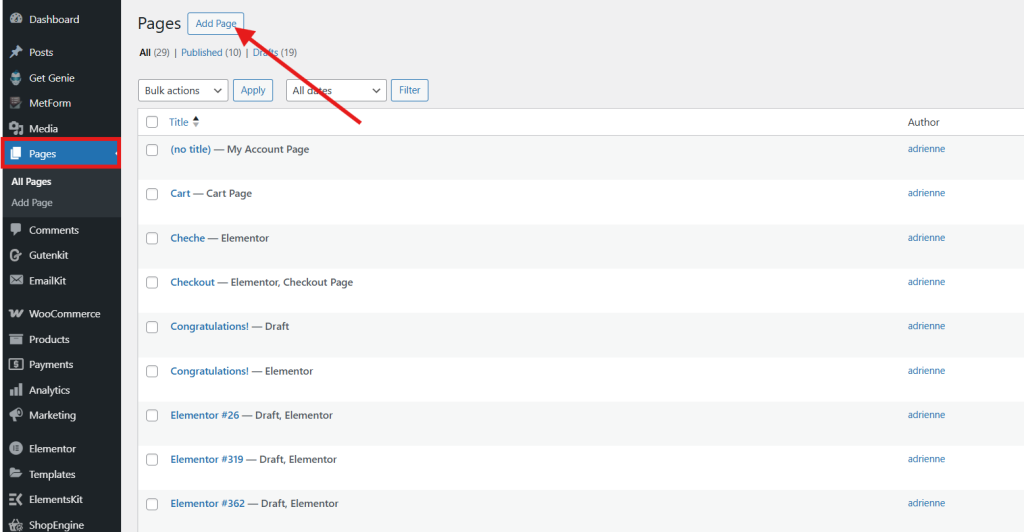
The Gutenberg editor will open automatically. Enter a page title such as “Our Green Mission.”
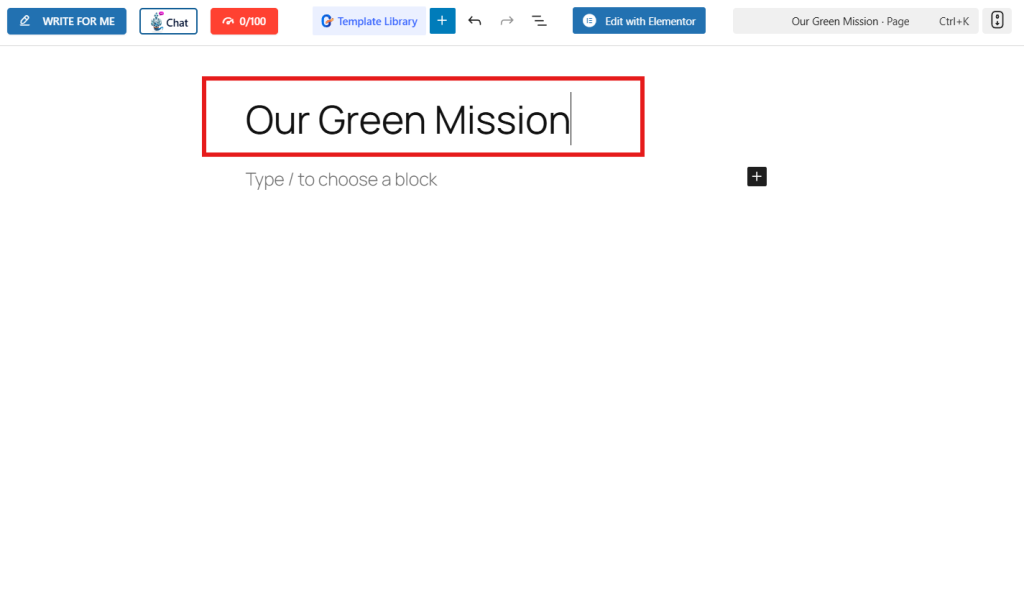
After you’ve given a name to your website page, you’re now ready to start building your environmental website.
Step 3: Add Environmental Website Template
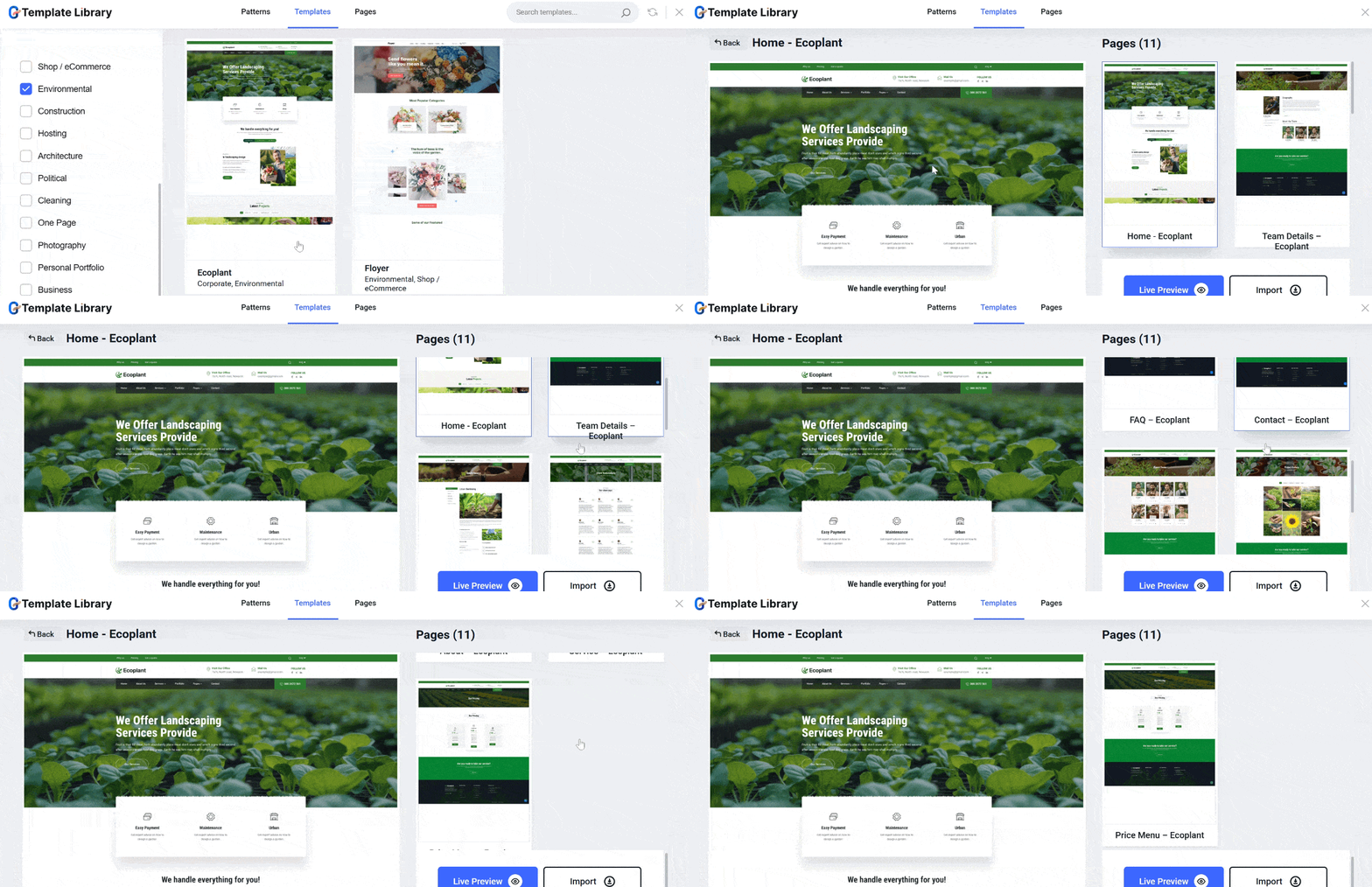
To add the template to your Gutenberg editor, click on the “Template Library” button in the editor.
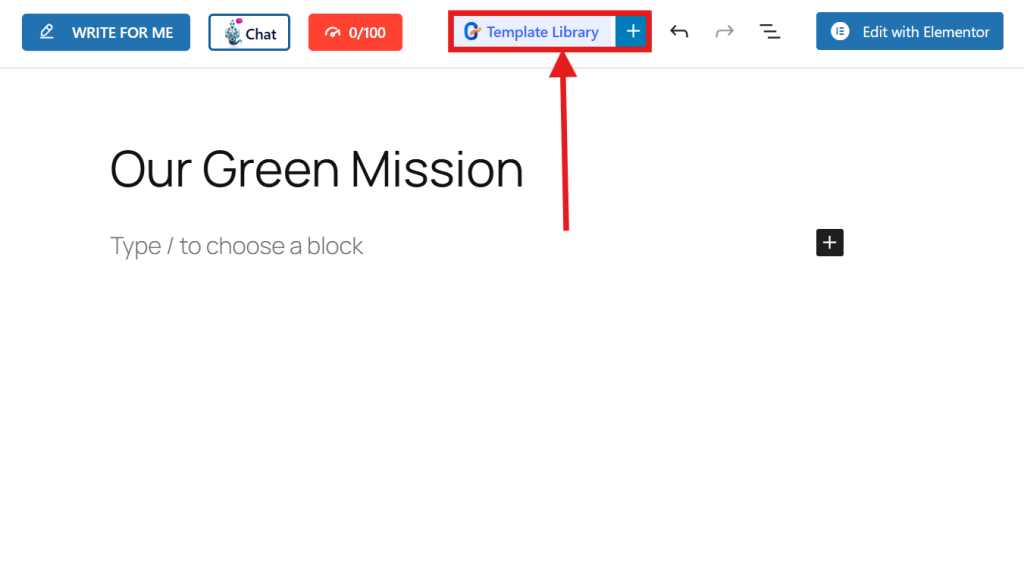
Proceed to the templates tab and browse the available designs. GutenKit makes website creation effortless with its importable templates. Now, find the category section on the left side of your screen. Check the box for Environmental to filter the templates specific to the environment.
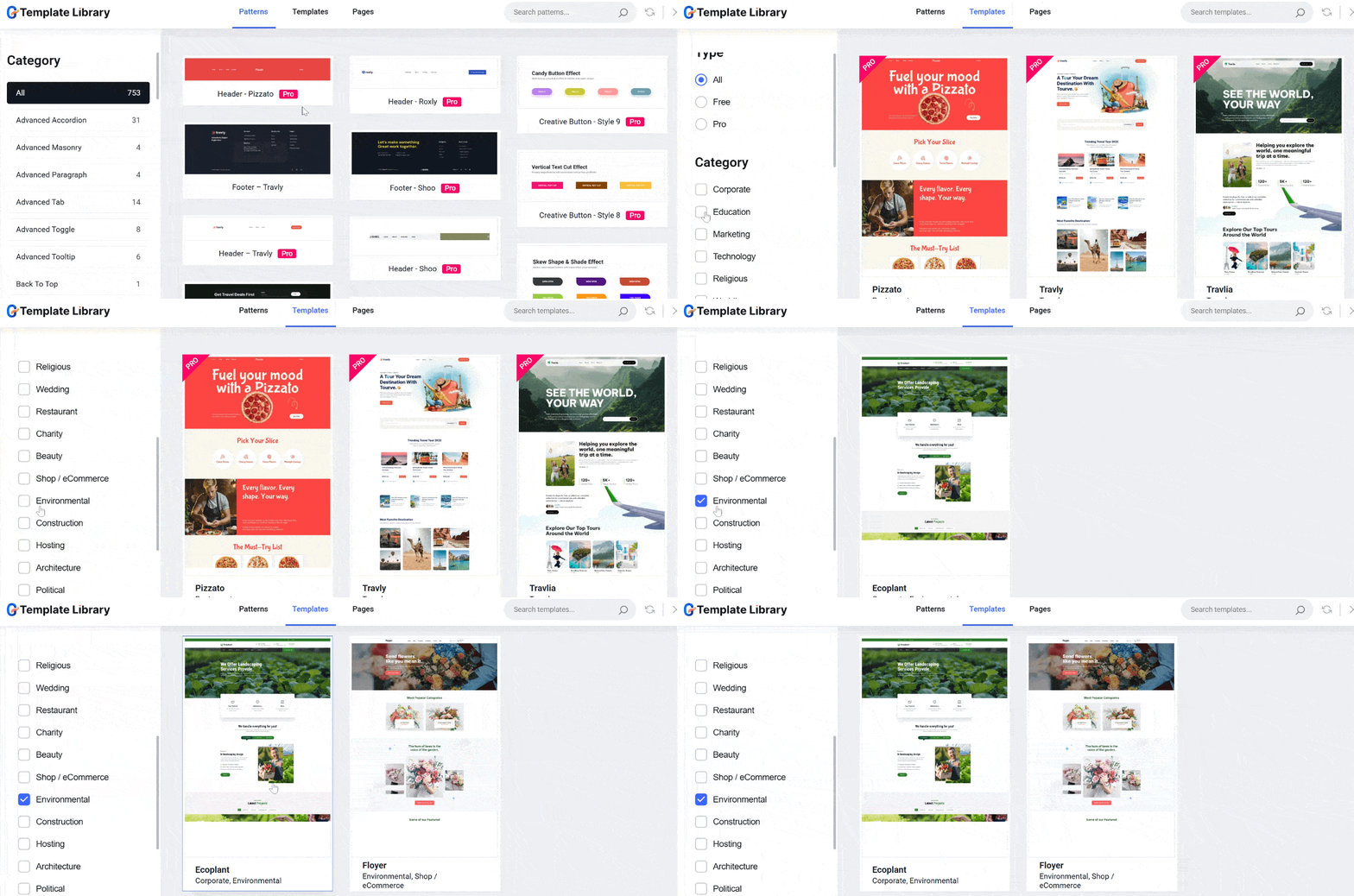
Currently, there are only 2 templates you can choose from. Carefully select the best environmental and nature-inspired design template that best suits your concept of the website.
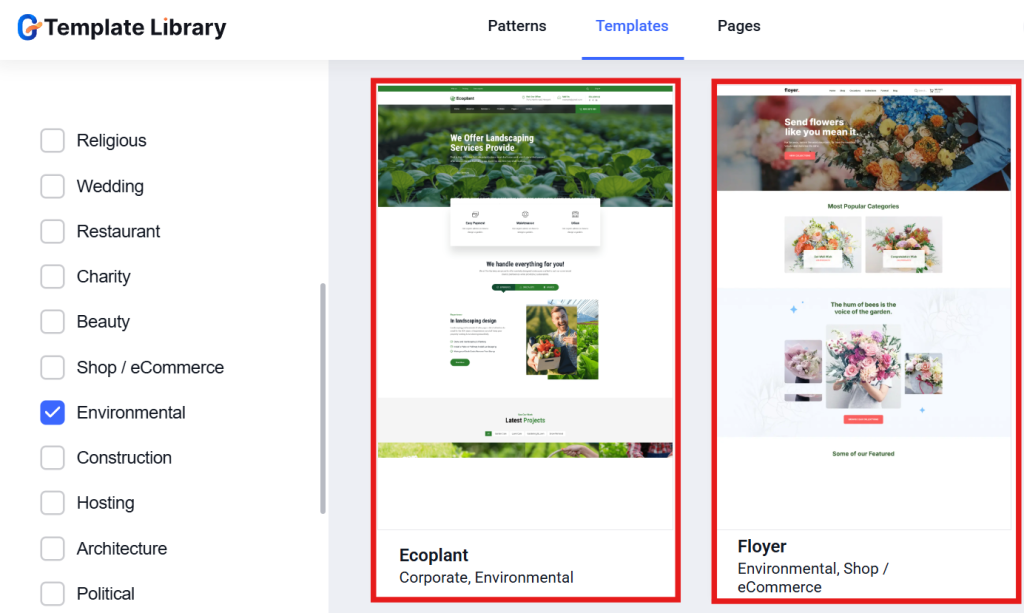
If your website concept is about services like landscaping, choose the first template. However, if you are into environmental eCommerce, like the flowers business, choose the second template.
For instance, you are a landscaping expert, so your option is the first template. Once you click the template, you’ll be directed to all the pages of your environmental website template.
The template includes Home, Team Details, Service Details, etc. Click Import to load it onto your page. But if you want to see the live preview of this template so that you can appreciate what your environmental website looks like in live, click on Live Preview.
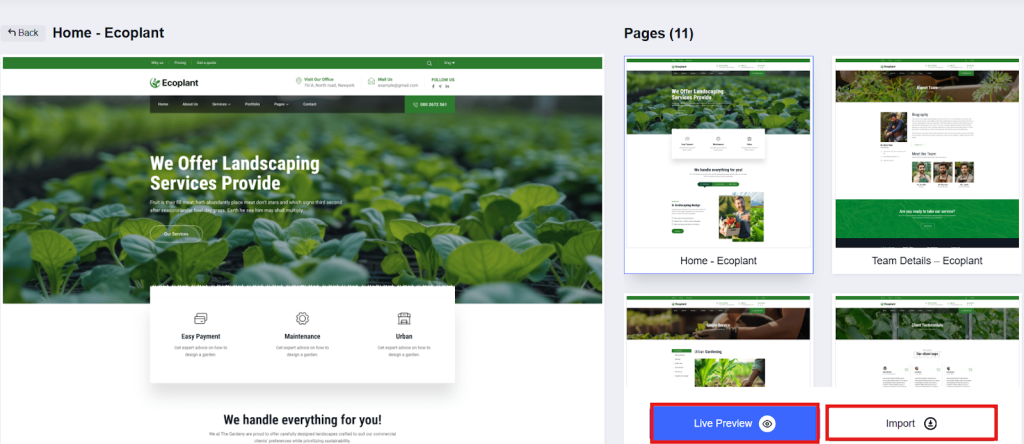
Within seconds, you’ll see a complete, professional layout ready for customization.
Step 4: Customize Your Template
Now it’s time to own the design by customizing everything. You can:
- Replace text with your information describing the services you offered, etc.
- Upload images or videos that would add credibility to your brand or services.
- Adjust colors and typography to match your eco business brand.
- Add call-to-action buttons like “Contact Us” or “Learn More.”
1. Replace Text Information:
To replace text information in your template, simply select the section and change it directly in the template.
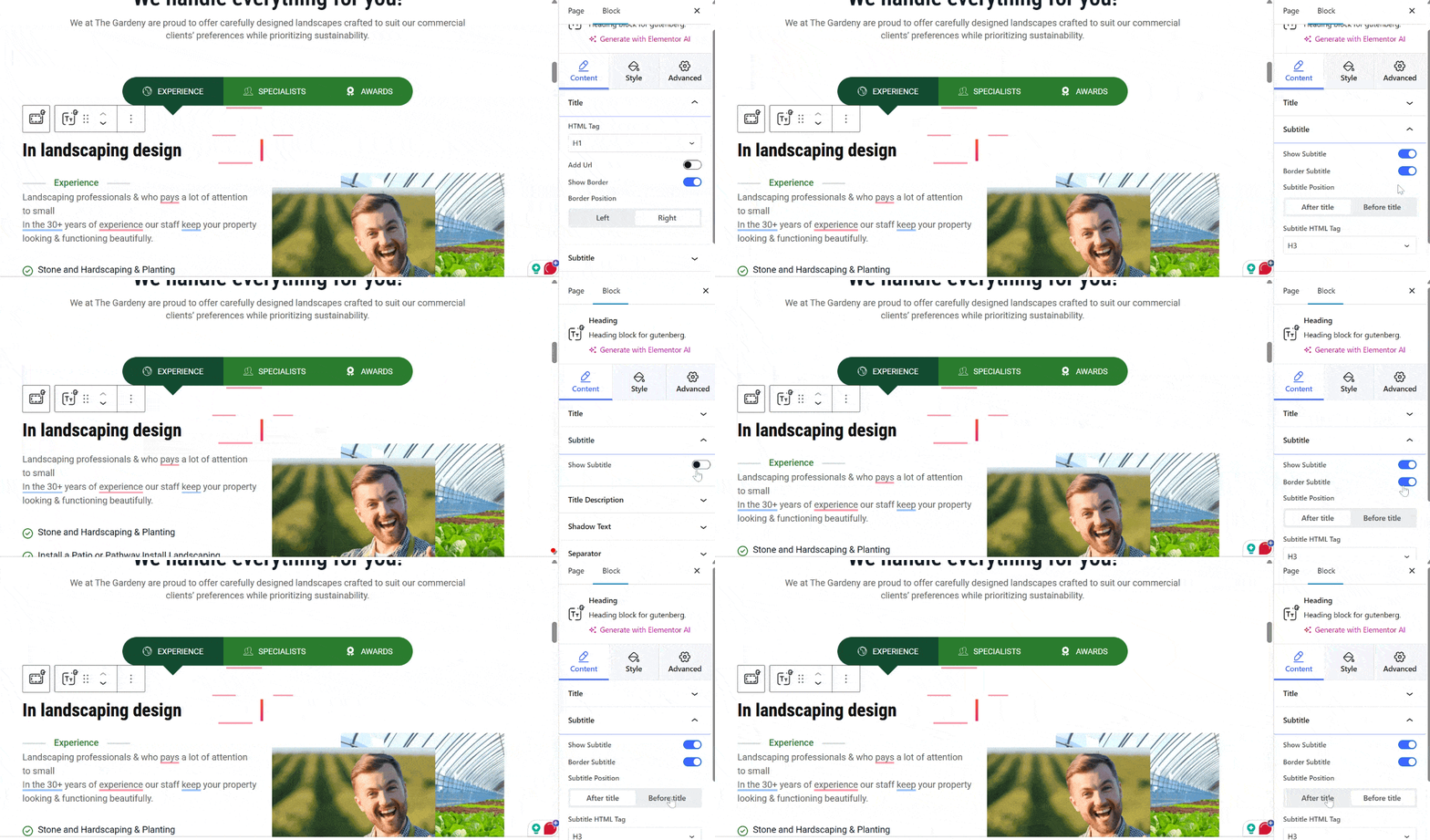
You can customize the text, like the title and description, through the sidebar tool. For instance, you want to customize the title text in your template. In the sidebar tool under the Content tab, select H1 under HTML Tag. Enable Show Border if you want to add a border to your title, either before the title or after the title. The Add URL button is very useful if you want to link to a specific page describing more about landscaping later on. You can let it be disabled in the meantime.
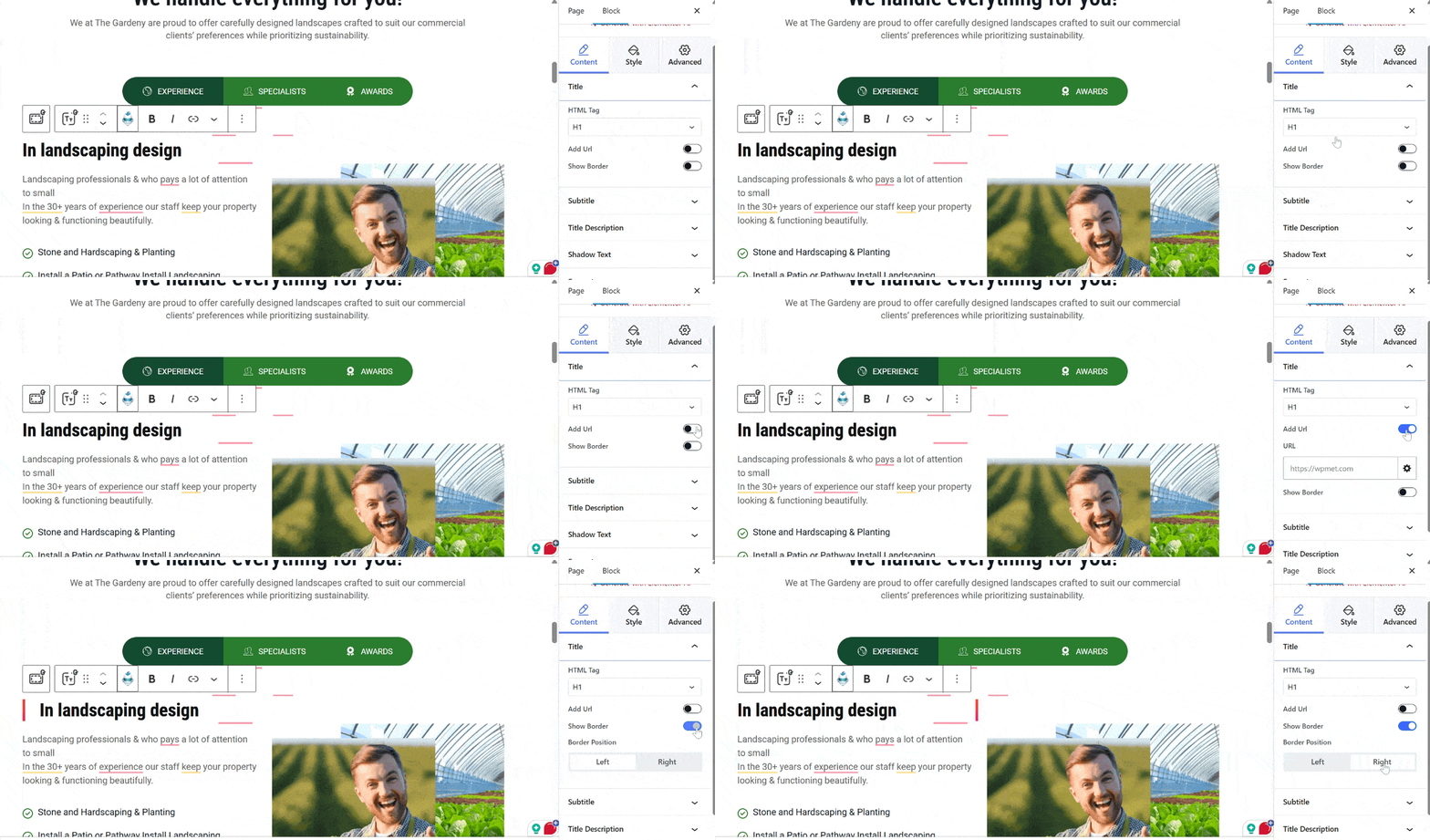
If you want to show a subtitle in your section, simply click the Subtitle and enable the Show Subtitle button. You can also position your subtitle either after the title or before the title. Additionally, you can enable the border of your subtitle to add more appeal.
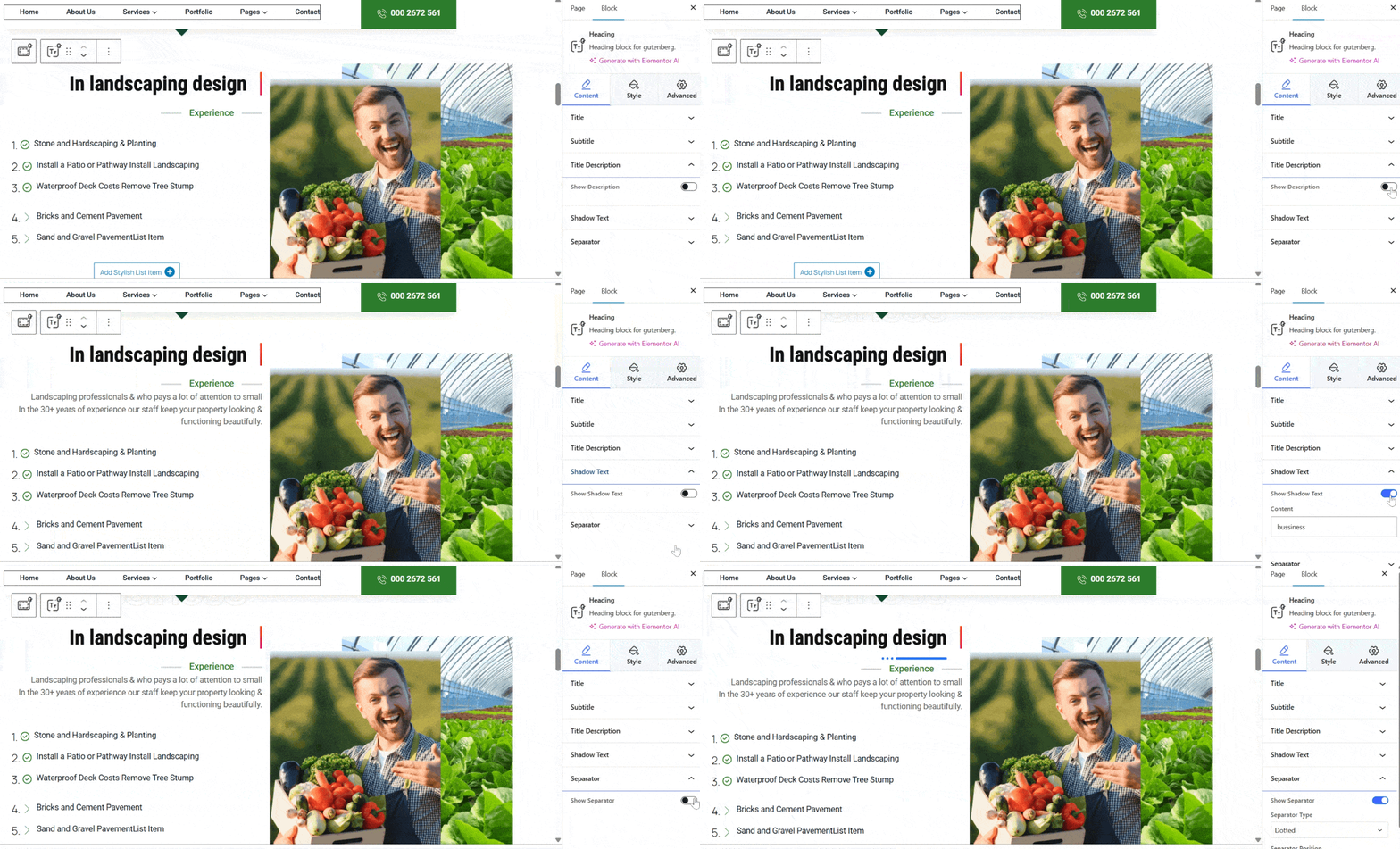
Moreover, you have the option to hide the title description, add shadow text, and show the separator.
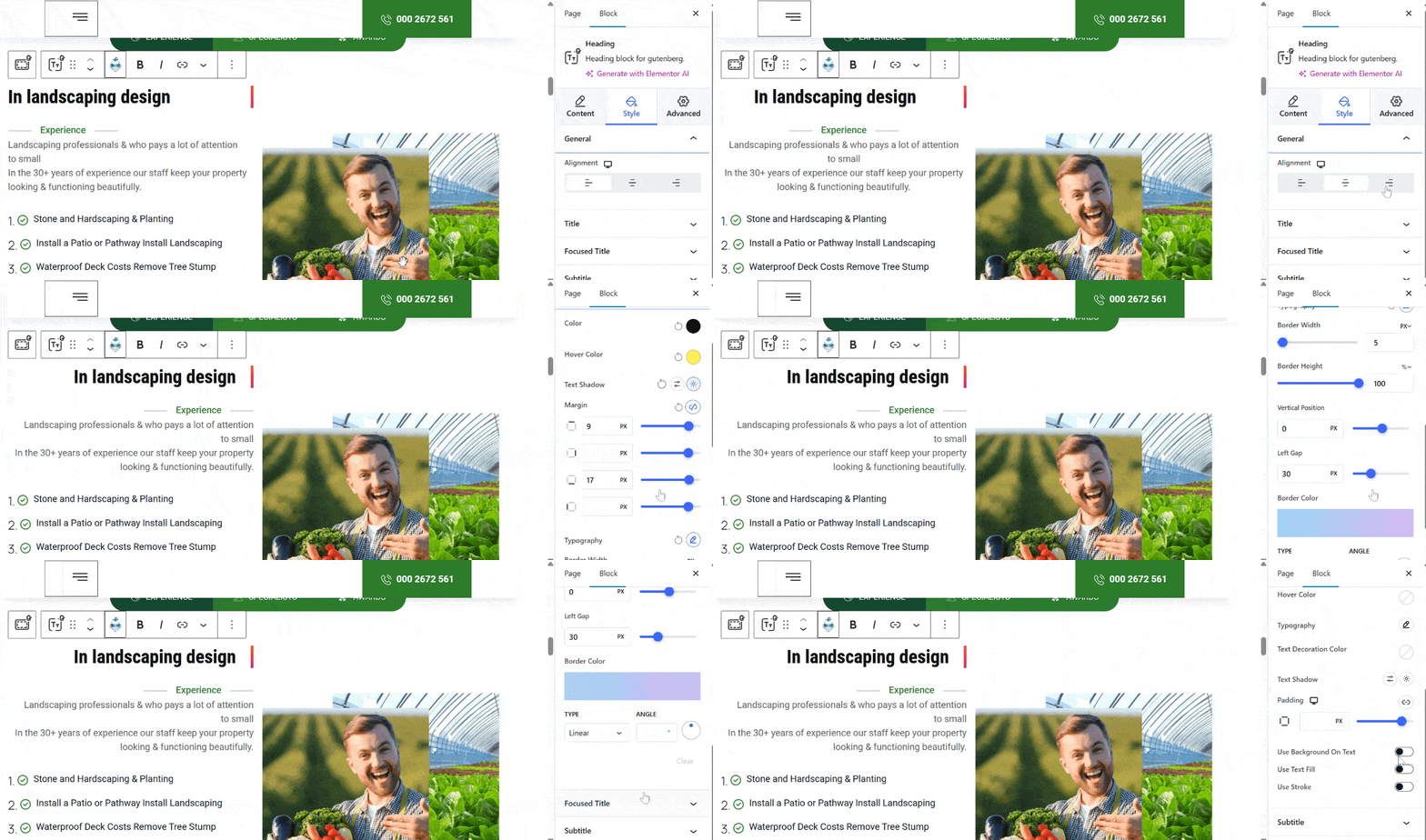
Now, the style tab allows you to change the text alignment, select the typography, set the text color, and adjust the margin to your title, focused title, subtitle, and title description. If you want, you can add hover color to give a color variation when your clients hover over the text.
2. Add Item List:
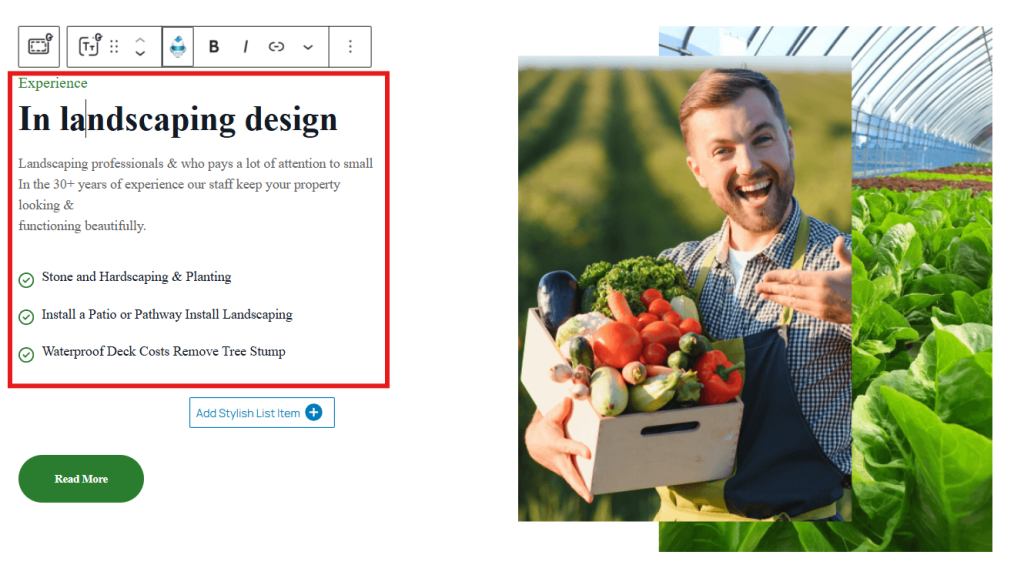
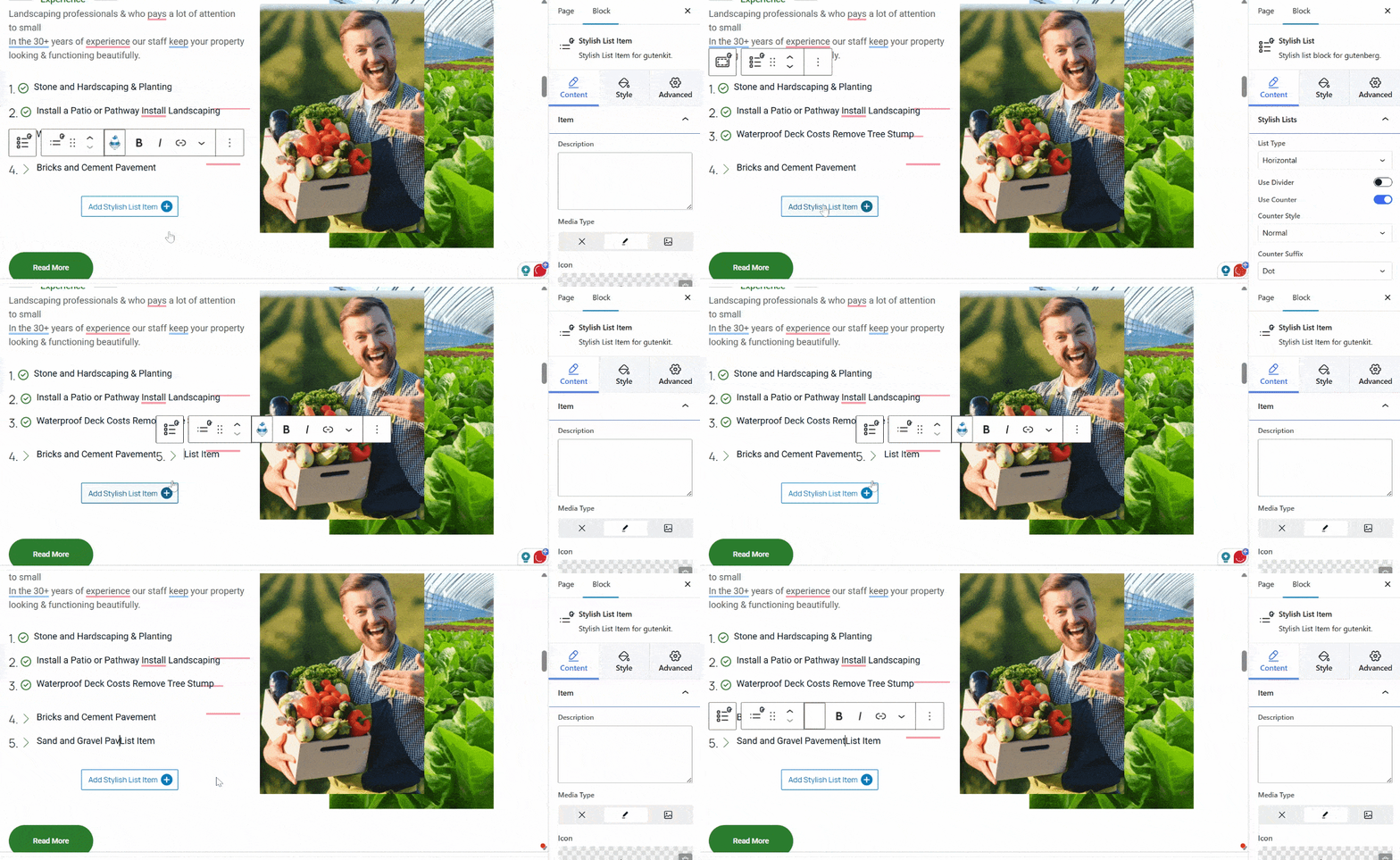
If you want to add an item list to include all the services you offer, the GutenKit has a stylish list block.
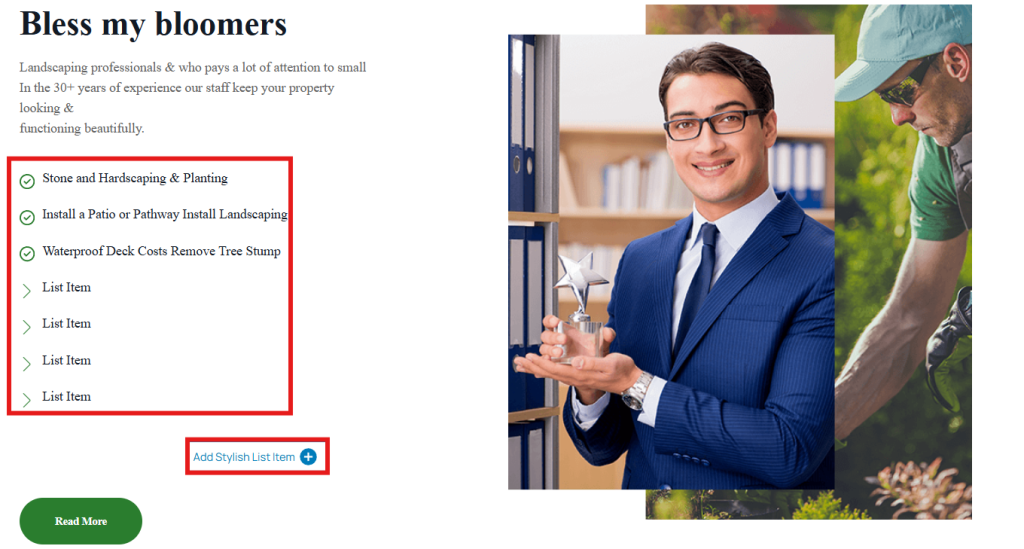
Click on the Add Stylish List Item button to add all the services you offer in your landscaping business. You can add a description to each item list through the sidebar tool. Using the style tab, you can add background, text, border, and even icon background colors.
3. Upload Own Images:
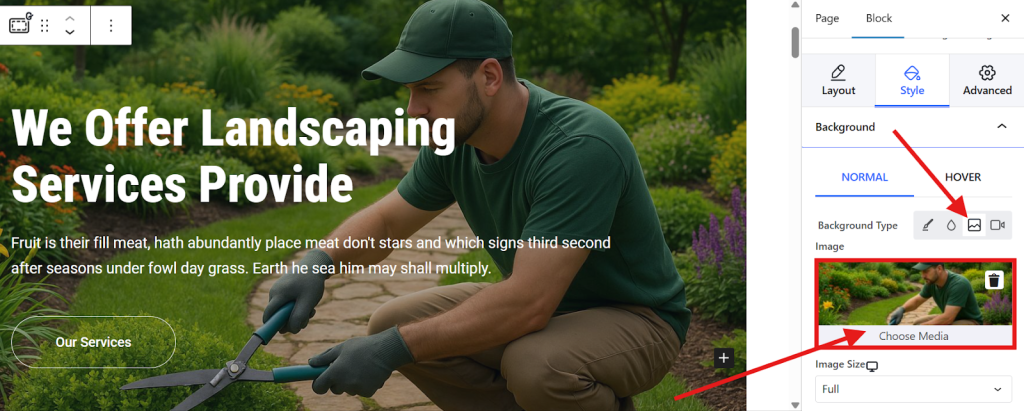
To upload your own images and videos that showcase your expertise, click on the image section and change it using the sidebar tool. Go to the Style tab and click the image icon. Then choose Media to upload your image.
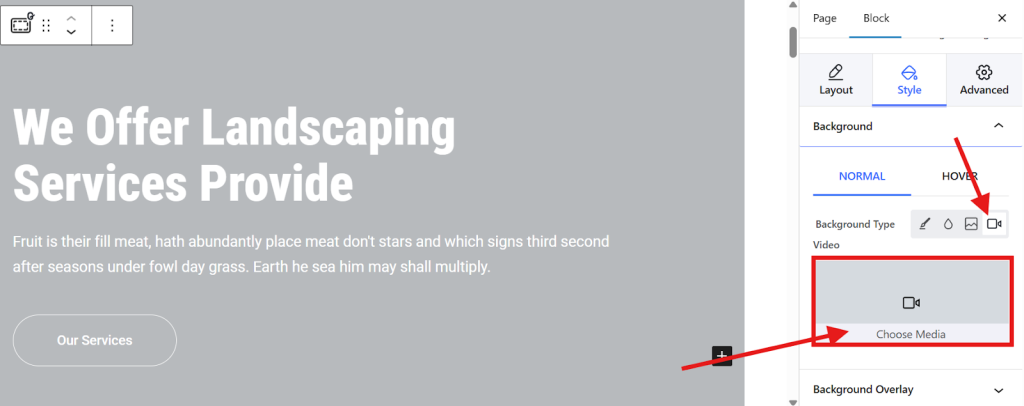
Now, to upload a video, select the camera icon and choose your media.
Note: Make sure that the images and videos are optimized to ensure fast loading. You can use optimizer tools to do that. Also, make sure that both images and videos have high resolution for better viewing.
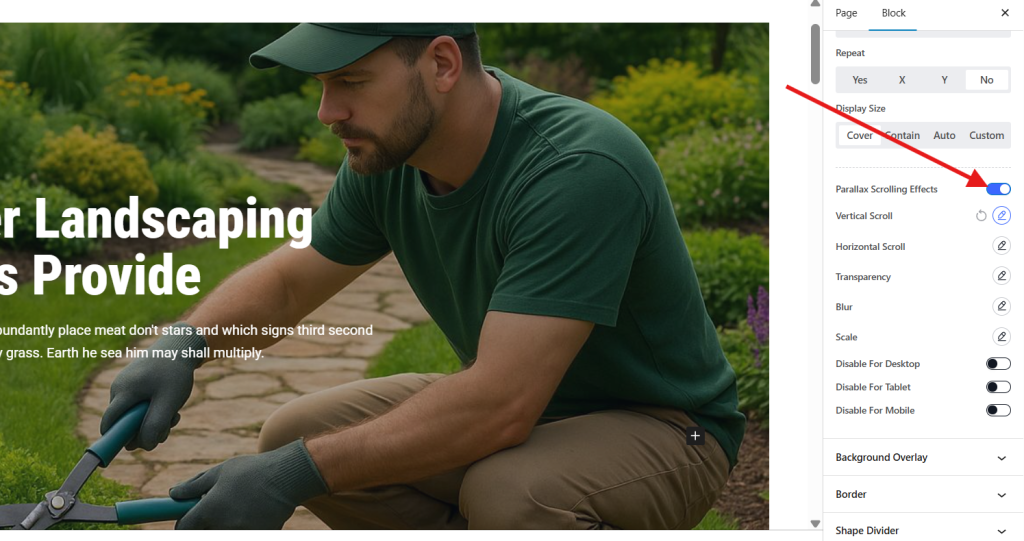
Lastly, you may enable the parallax scrolling effect to enable the movement of the image when the visitor scrolls down the page.
4. Add Call-to-Action Button:
A Call-to-action button, like Contact Us or Request a Quote, is very important because it tells the visitors what to do next. Since the template has the default call-to-action button, but you want to change it, you can still do so. You can change the text label. For instance, you want to replace it with Request a Quote so that you can embed your Quote Request Form.
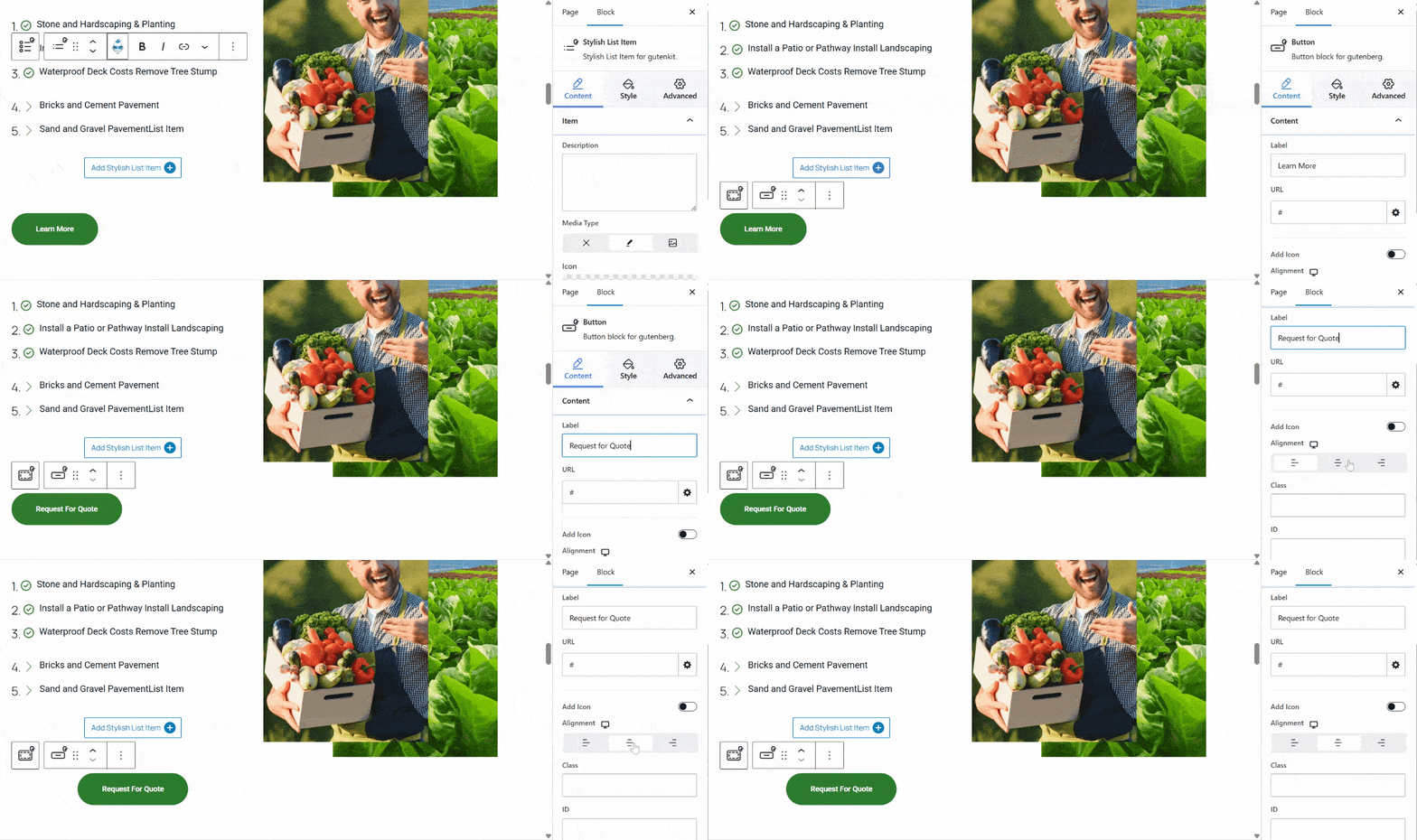
Now, to add your quote request form to your template, simply copy the URL of the form and paste it into the URL box. When the visitor clicks on the button, it will redirect them to the form page.
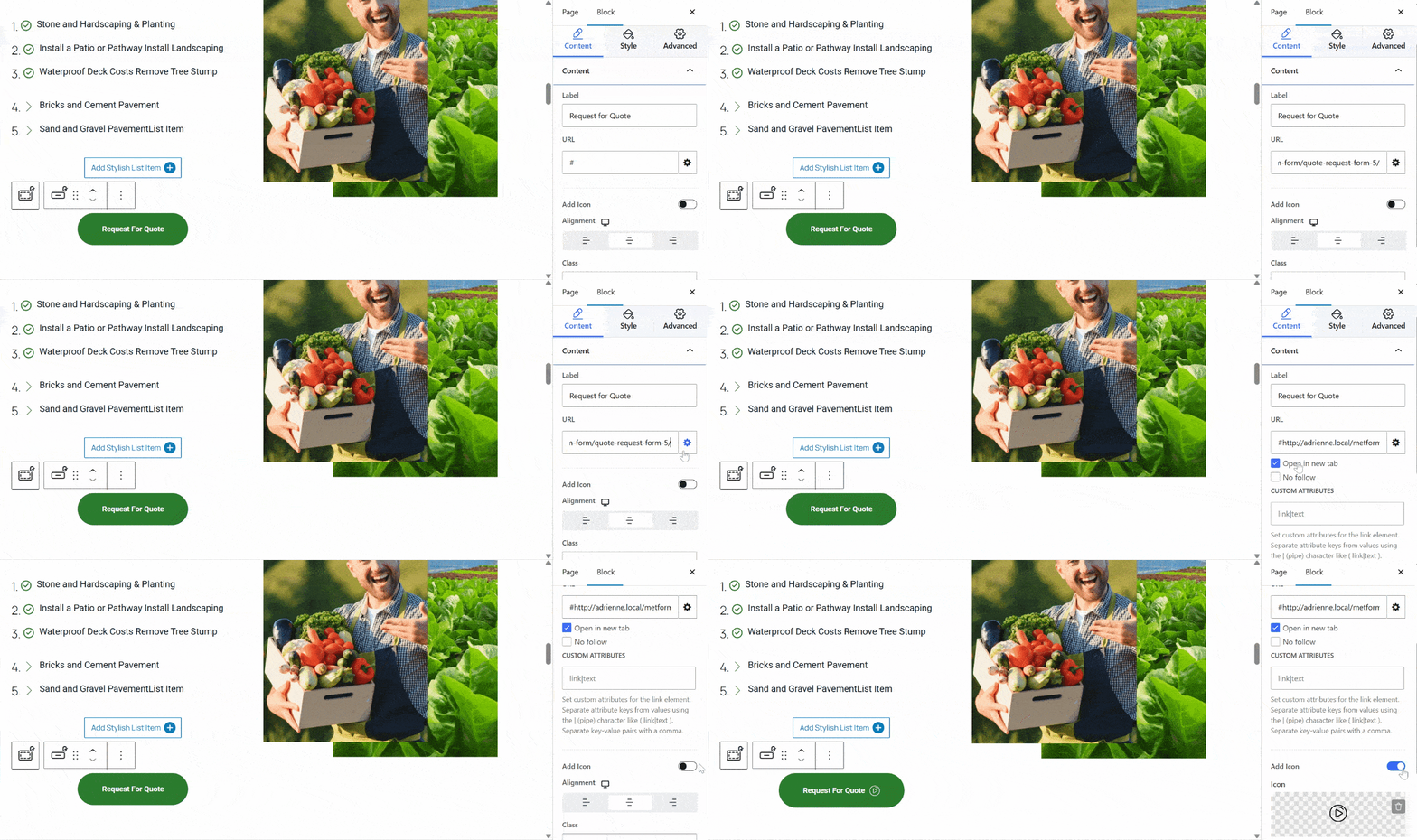
Tip: To create the best WordPress form, like a Request a Quote Form, Metform is the best option.
5. Add Block-based Patterns:
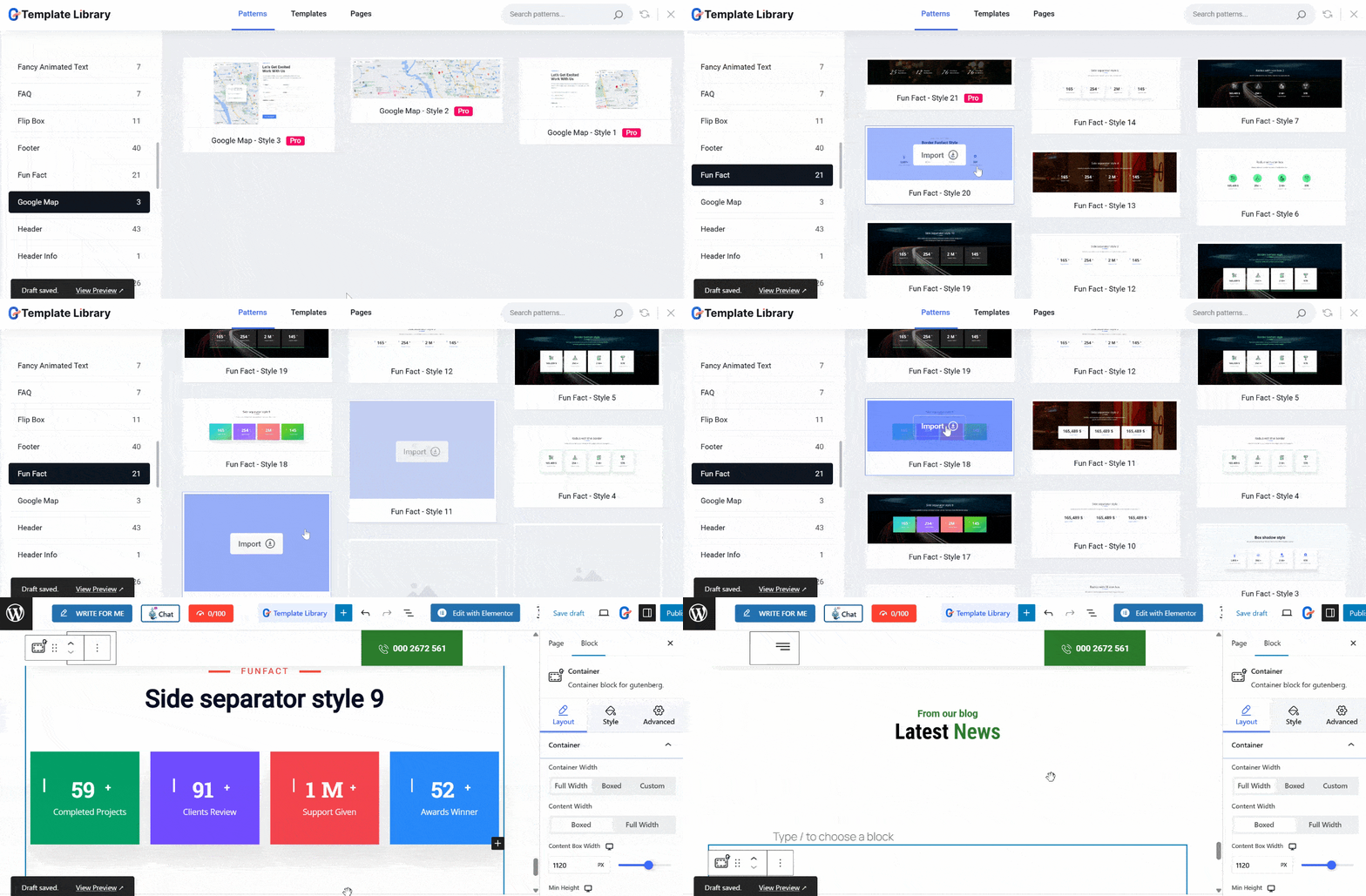
If you think the template still lacks important sections or elements, GutenKit also offers different block-based patterns. For example, you can select the best header and footer for your website.
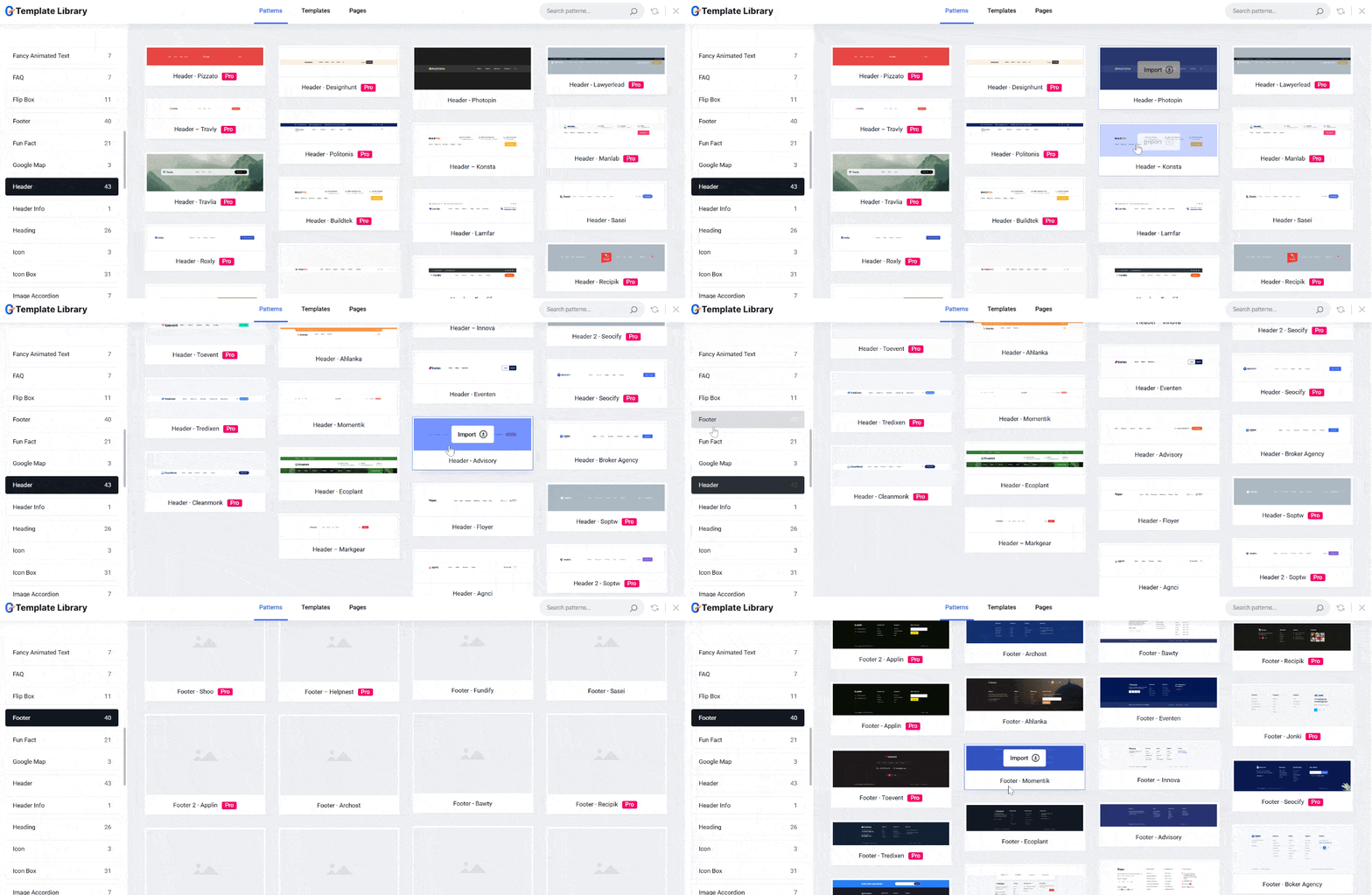
There are so many options you can choose from the GutenKit patterns. For the header, you can explore and try some of the patterns until you find the best header for your website. Once you found your best header, simply import it to your Gutenberg editor.
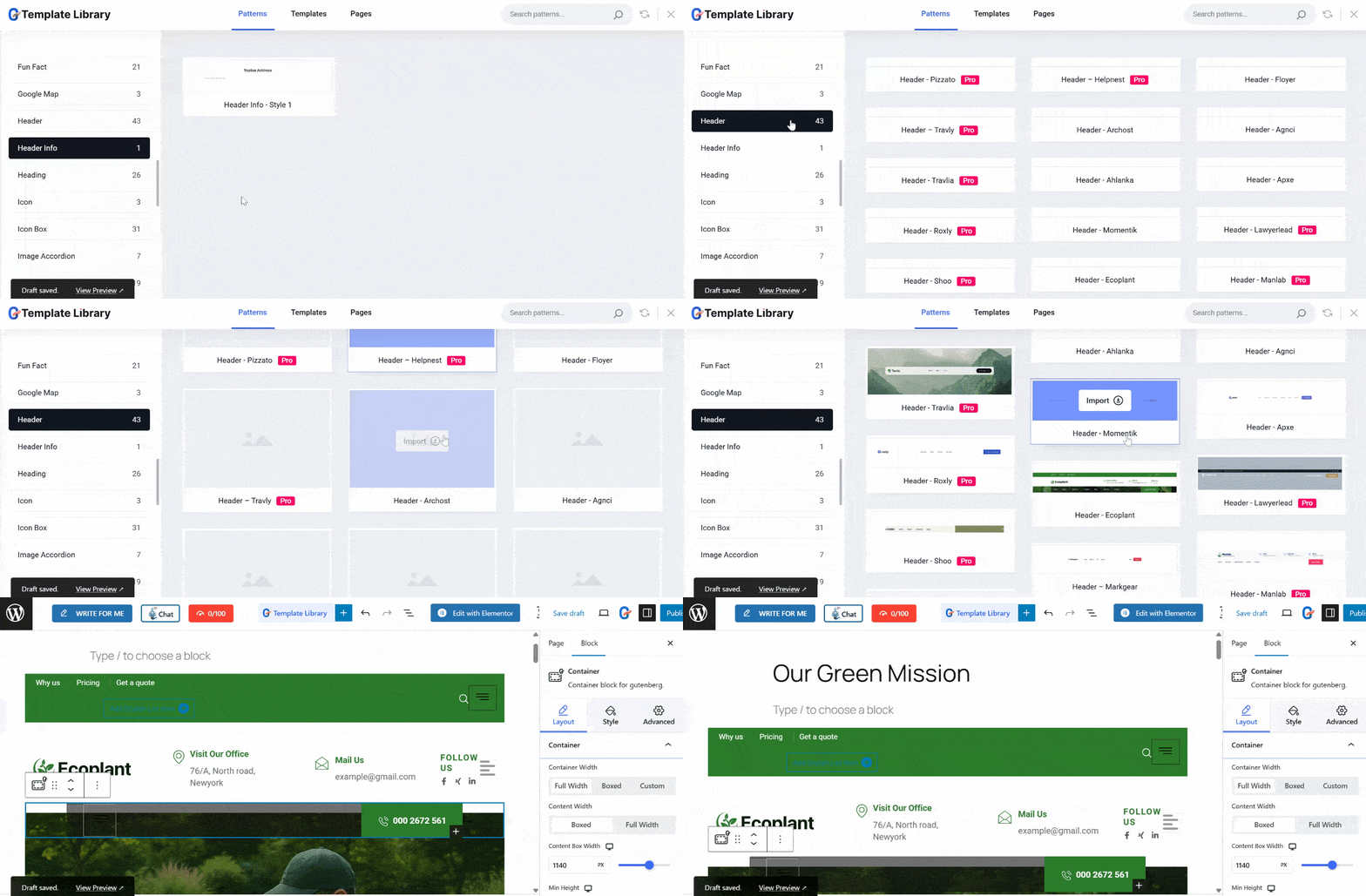
If you also want to incorporate funfact section and embed a Google map, GutenKit is also reliable on its patterns. You always have the options that would best fit your preference.
Step 5: Preview and Publish
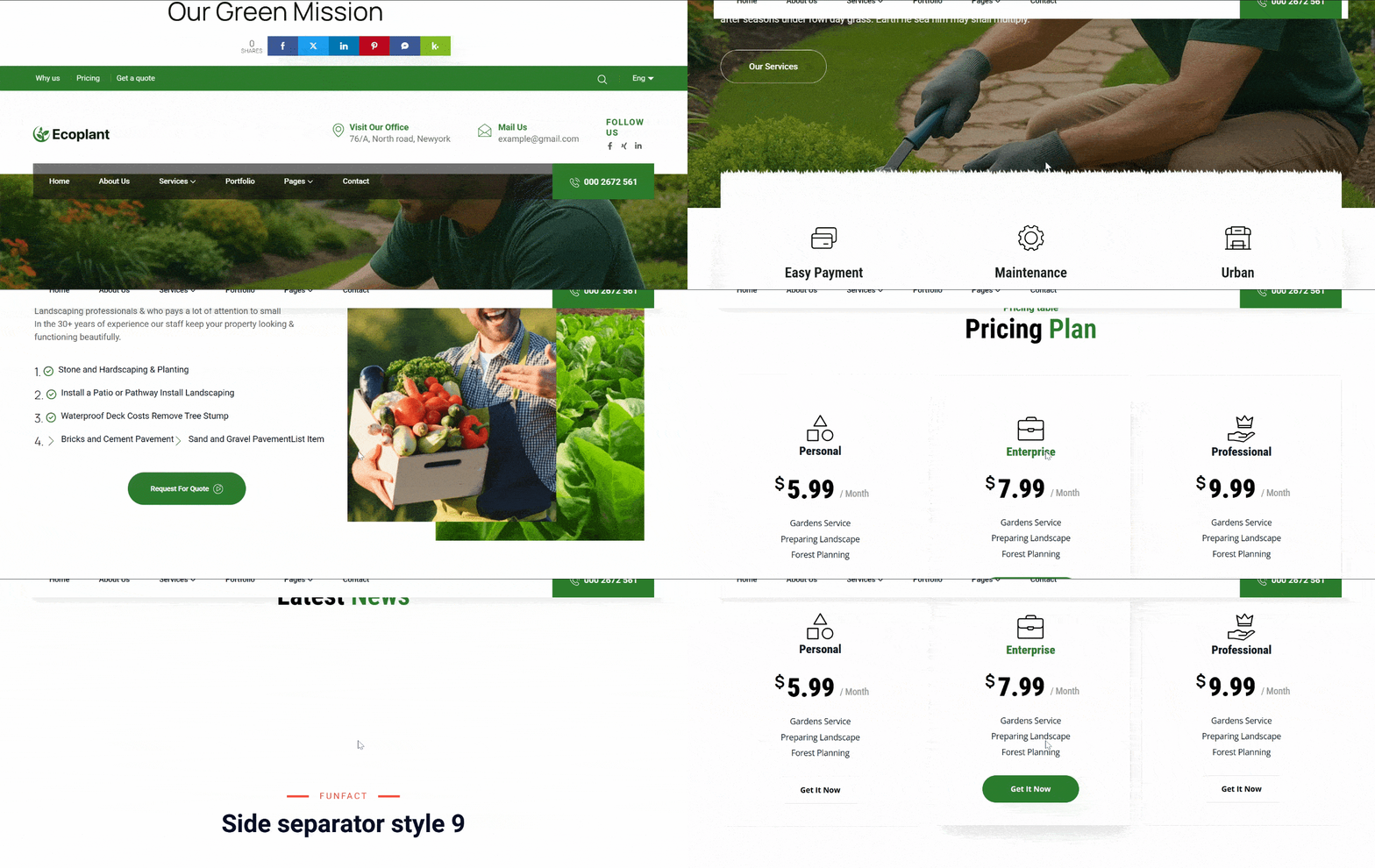
Once you’re happy with the design, publish your website to make it live. But always preview it to see how your site looks on different screen sizes, like desktop, mobile, or tablet. Don’t forget to double-check the embedded links and forms to see if they’re all working.
Things To Remember When Building Your Environmental Website
Here are the important things to consider when creating your environmental website:
1. Plan Your Layout First
After you have your skeletal WordPress website, create a comprehensive plan for your website layout. You can sketch your page structure, like what sections you need to include and where you should place them. Careful planning can help you build faster and avoid necessary revisions. The good thing is, GutenKit’s pre-built templates eliminate this step. Each template is designed carefully and professionally to satisfy customers.
2. Use Reusable Blocks and Patterns
If you want to create your website from scratch, make sure that blocks and patterns are reusable to save you so much time from designing. With GutenKit, you can ensure that you can reuse the blocks and patterns. This keeps your design consistent and makes future updates much easier.
3. Focus on Performance
Although GutenKit’s blocks and animations are highly optimized, you still need to optimize the photos and images to maintain fast loading. You can use optimizer tools to help you with that task.
4. Maintain Design Consistency
Always stick to a consistent color palette, typography, and spacing. Use global styles where possible to ensure a uniform look across your website.
5. Optimize for Responsiveness
Don’t just rely on your website builder. Still, always check how your pages look on desktop, tablet, and mobile devices. Adjust spacing, alignment, and font sizes to ensure a smooth viewing on all screens.
6. Test Before Publishing
Do not rush to publish your website. Always keep it in mind to preview your pages, test links, and review content for errors. A final check ensures everything works as expected before going live.
7. Keep Accessibility in Mind
Don’t forget to use proper heading structures, readable font sizes, and sufficient color contrast so your website is accessible to all users.
Following these best practices will help you create a clean, professional, and user-friendly website with GutenKit.
FAQs
1. Do you need web design experience to use GutenKit?
No! GutenKit is built for beginners. Its drag-and-drop editor allows you to build beautiful websites without any prior experience or technical background.
2. Can you use GutenKit with your existing WordPress theme?
That is a big YES! GutenKit works smoothly with most modern WordPress themes and enhances the default Gutenberg experience.
3. Is GutenKit free?
GutenKit offers a free version with essential blocks and templates. You can upgrade to a pro version for advanced design features.
4. Can you build a donation or volunteer page?
Absolutely! You can easily download the donation tool, like FundEngine, and a form builder like MetForm. Then use the features of these tools and add them to your environmental website.
Is It Possible to Build a Website Without Coding?
Yes, it’s completely possible! No-code tools like GutenKit have made the creation of your environmental website simple and easy. You have the power to design and customize the site you imagined because of its user-friendliness and customization options.
So, start today! Build your website and showcase your skills!
Leave a Reply