




You don’t always need a developer to create and manage an eCommerce website. With WordPress, you can build a complete online store by installing WordPress, importing a Gutenberg-based template from GutenKit, customizing the layout and content, and publishing the site without writing code.
WordPress is a flexible content management system that supports no-code website creation and customization. As a result, even beginners and non-technical users can craft a complete eCommerce website in no time.
In this blog, we’ll walk you through the step-by-step process of how to create an eCommerce website in WordPress using Gutenberg templates.
Quick Overview
To create an eCommerce website in WordPress, you don’t necessarily need a developer or coding expertise. WordPress offers a no-code environment that allows beginners and non-technical users to build, customize, and launch a fully functional online store using plugins and block-based editors.
Tools Used: WordPress & GutenKit
Here is the step-by-step method to create an eCommerce site in WordPress using the block editor (Gutenberg) and ready-made templates:
Step 1: Install WordPress
Set up WordPress on your hosting account to begin building your site.
Step 2: Install Required Solutions
Install and activate GutenKit to use Gutenberg templates.
Step 3: Create a New Page
From your WordPress dashboard, open Pages and add a new page for your shop.
Step 4: Select Gutenberg Templates
Open the template library, choose a suitable eCommerce website template, preview it, and import it into your page.
Step 5: Customize Content
Edit text, images, buttons, and other elements directly in Gutenberg to match your store’s branding and products.
Step 6: Adjust Layout and Style
Use block and section settings to refine layout properties such as spacing, alignment, and backgrounds.
Step 7: Publish Your Site
Finally, publish the page to make your eCommerce store live.
Table of Contents
How to create an eCommerce website in Gutenberg
Whether you want to create an eCommerce website in the classic editor or the block editor, WordPress offers solutions for all. Here we’ll disclose the complete process of creating an e-commerce website using the block editor.
Let’s see how to create an eCommerce website in Gutenberg in seven simple steps with GutenKit:
Step 1: Install WordPress.
Since it is a no-code and open-source content management system, we’ll use WordPress for creating a Gutenberg eCommerce website. Besides, it powers up more than 43% of websites online.
Thanks to its user-friendly and no-code customizations, people drastically adopted this CMS to smooth website creation, customization, and management. So, download and set up your WordPress website.
Step 2: Add required solutions.
In the second step, you need to add the required plugin to your WordPress website that comes with prebuilt eCommerce website templates.
GutenKit is an ultimate Gutenberg page builder that includes numerous readymade patterns, templates, and pages for your eCommerce site. So, we’re using GutenKit as an eCommerce website builder.
For installing it, navigate to Plugins >> Add New Plugin and search for GutenKit in the Search bar. After that, press “Install” and activate the plugin after completing installation.
Step 3: Create a new page.
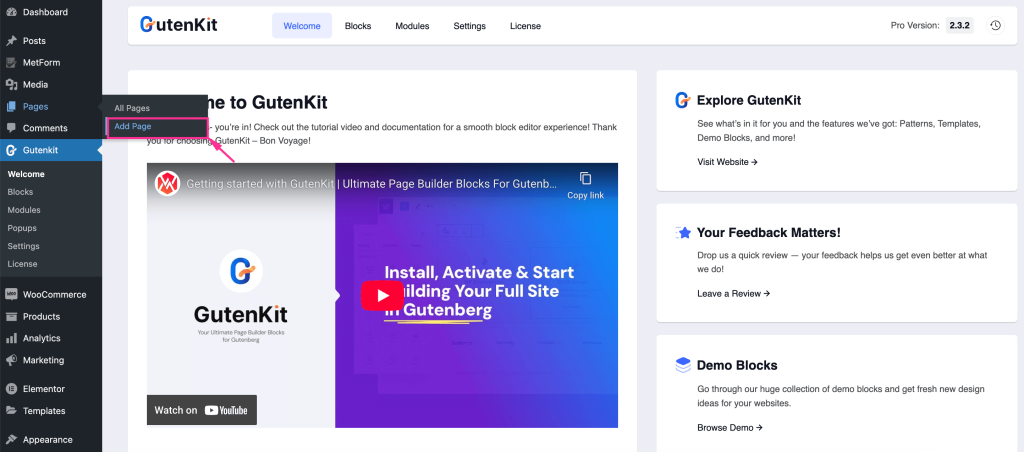
After installing and activating required solutions, add a new page for the eCommerce website by navigating to Pages >> Add Page. Clicking the “Add Page” menu will redirect you to a new page.
Step 4: Select Gutenberg templates.
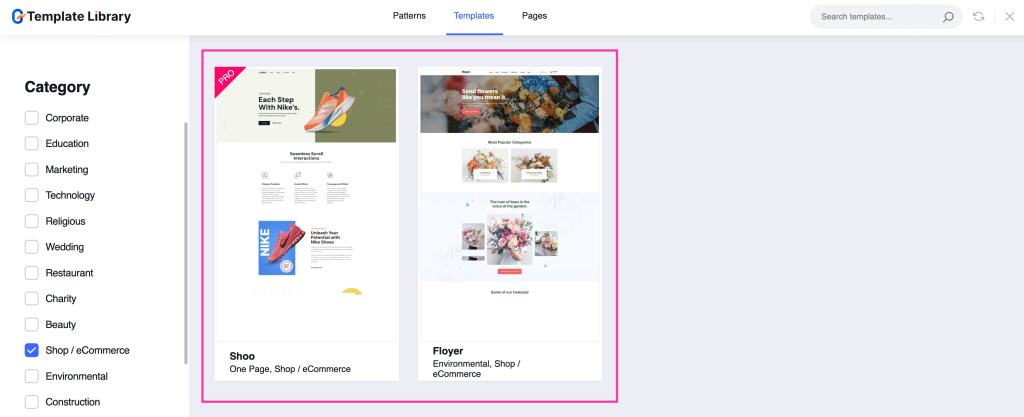
In the fourth step, you have to import a suitable Gutenberg block template for eCommerce site. For that, add a name to your page and press the “Template Library” button on the top left side.
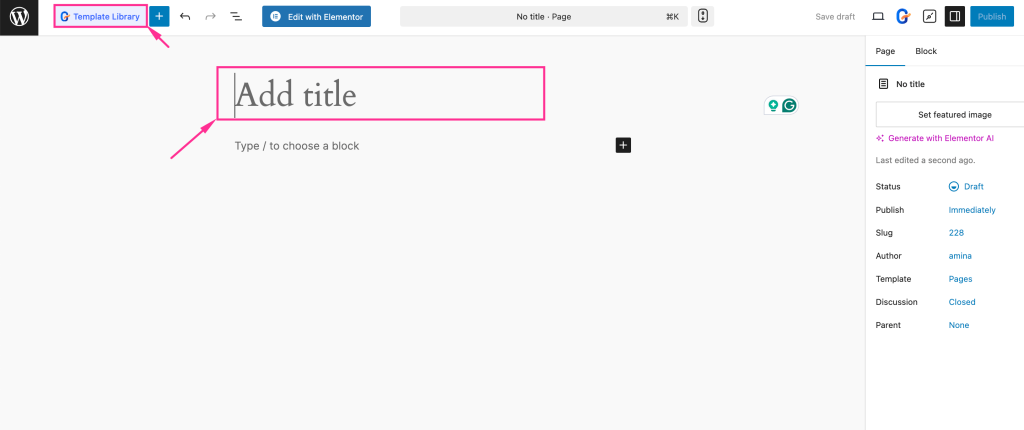
Thus, a pop-up template Library will be opened up, which includes all ready-made patterns, templates, and pages.
Now, press the “Templates” tab and select “Shop/ eCommerce” from the Category option shown on the left side.
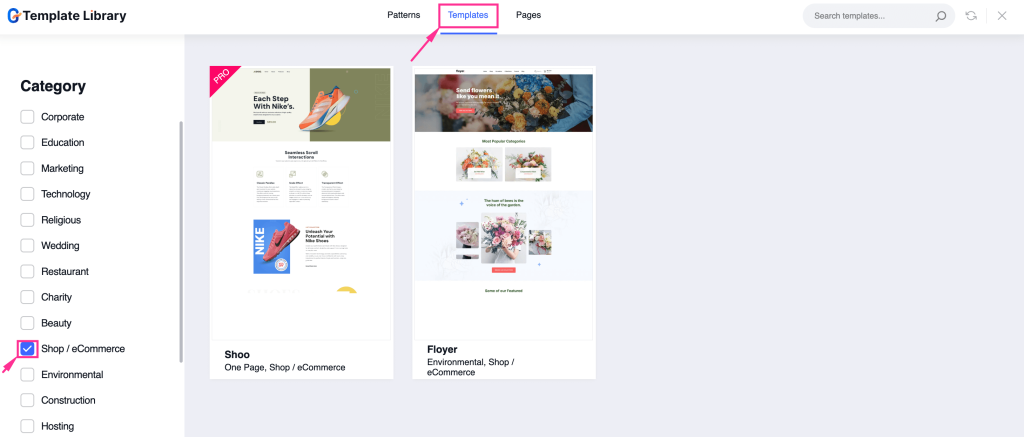
You will find all the available free and pro templates here. Choose and hit to import an appropriate template for your eCommerce website from the collection.
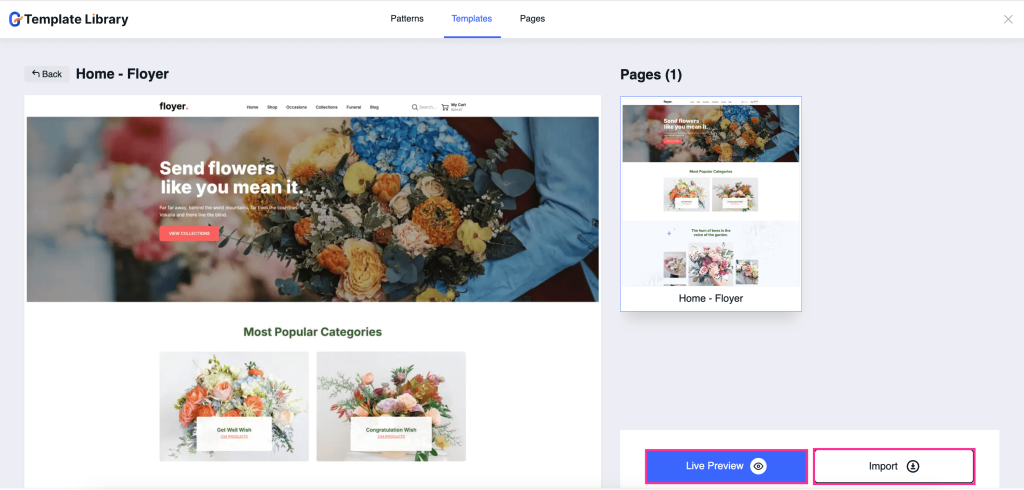
Here, you will find both “Live Preview” and “Import” buttons. Press the “Live Preview” button to see how it actually looks. And if you liked, hit “Import” to use it for your eCommerce website.
After pressing the “Import” button, the template will be added to your WP page.
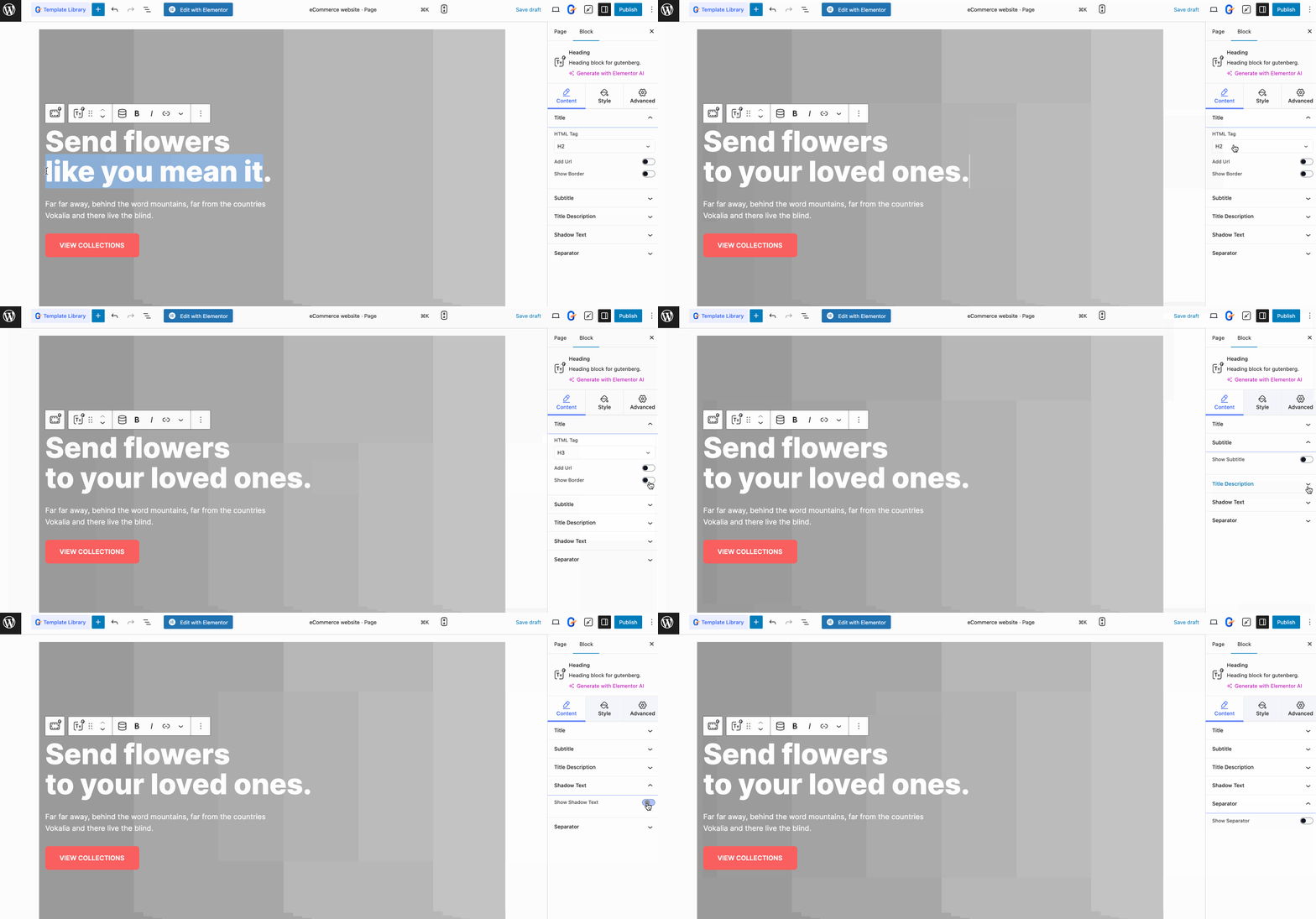
Step 5: Content customization of eCommerce template.
In this step, you have customized your eCommerce template the way you want. First, adjust the content of your eCommerce template by directly clicking on it. Then, edit the HTML Tag, add a URL, and Show border for your title.
Similarly, you can adjust Subtitle, Title Description, Shadow Text, and Separator of your template.
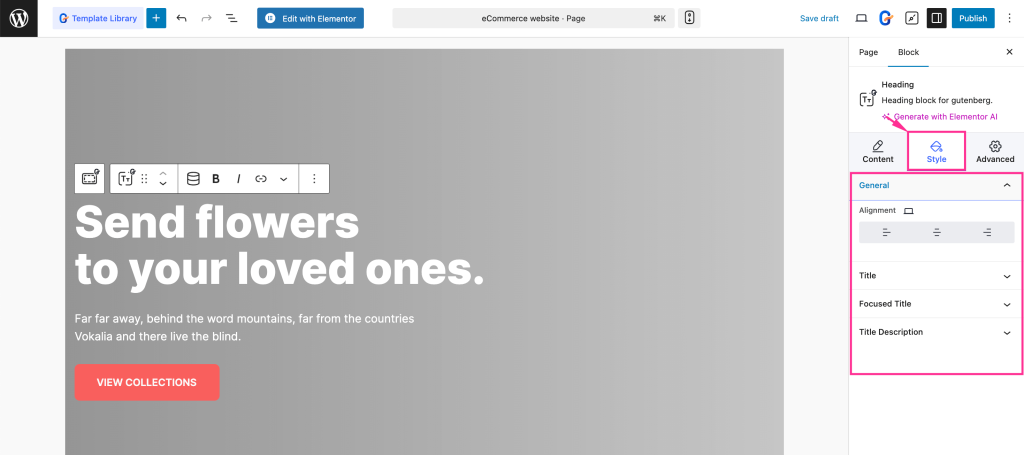
Also, you can change the Style of your template by adjusting Alignment, Color, Hover Color, Text Shadow, Margin, Typography, etc., for your General, Title, Focused Title, and Title Description.
Step 6: Edit layout of the eCommerce template.
Next to template content and style customizations, adjust the layout of your eCommerce WordPress website.
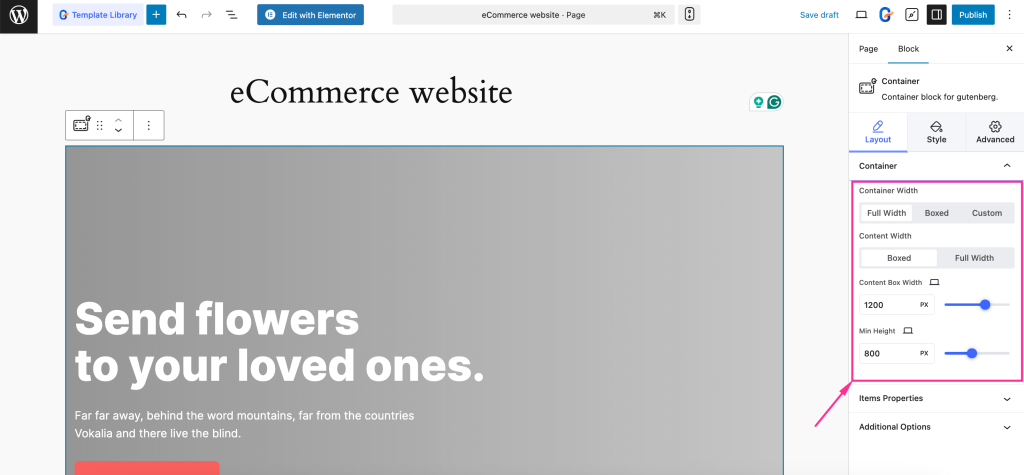
For that, select the overall section and set Container Width, Content Width, Content Box Width, and Min Height for your Container.
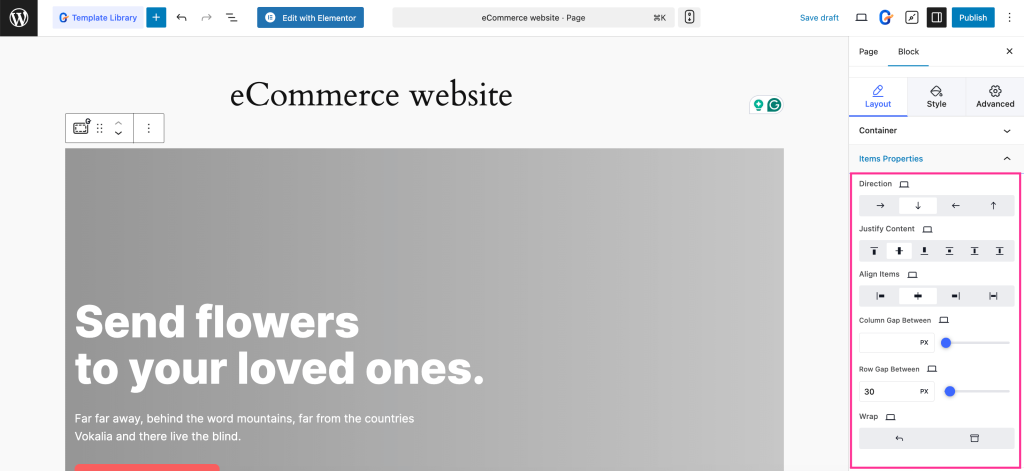
After that, expand the “Item Properties” tab and edit Direction, Justify Content, Align Items, Column Gap Between, Row Gap Between, and Wrap.
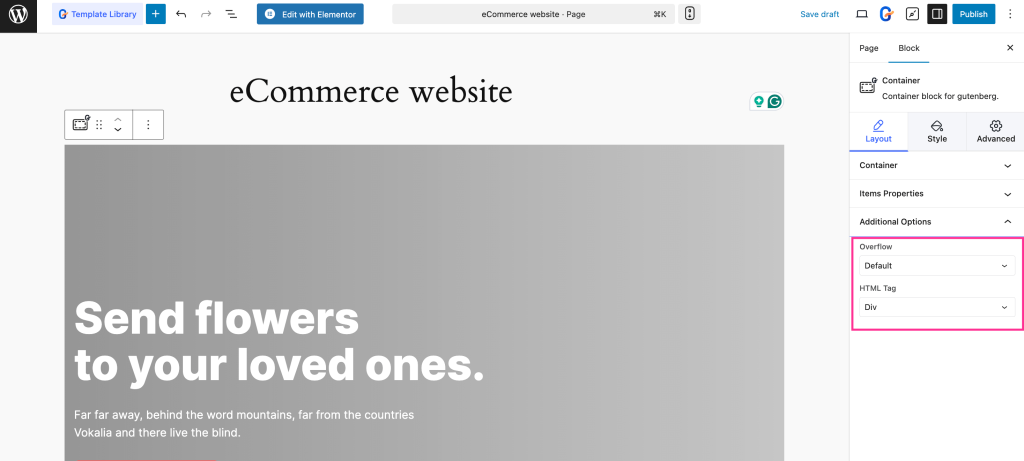
Also, select Overflow and HTML Tag from the dropdown menus to customize Additional Options.
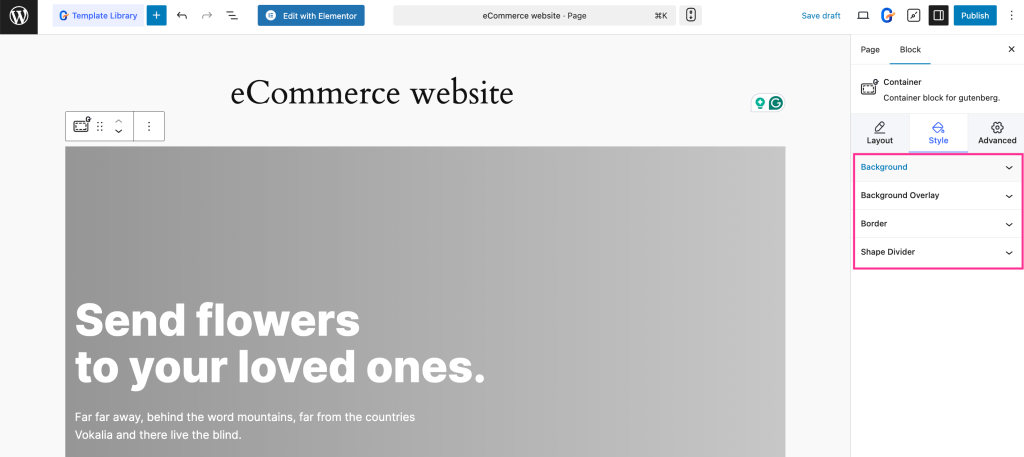
Next, navigate to the “Style” tab and customize the Background, Background Overlay, Border, and Shape Divider of your eCommerce website by accessing the controls you will find expanding each tab.
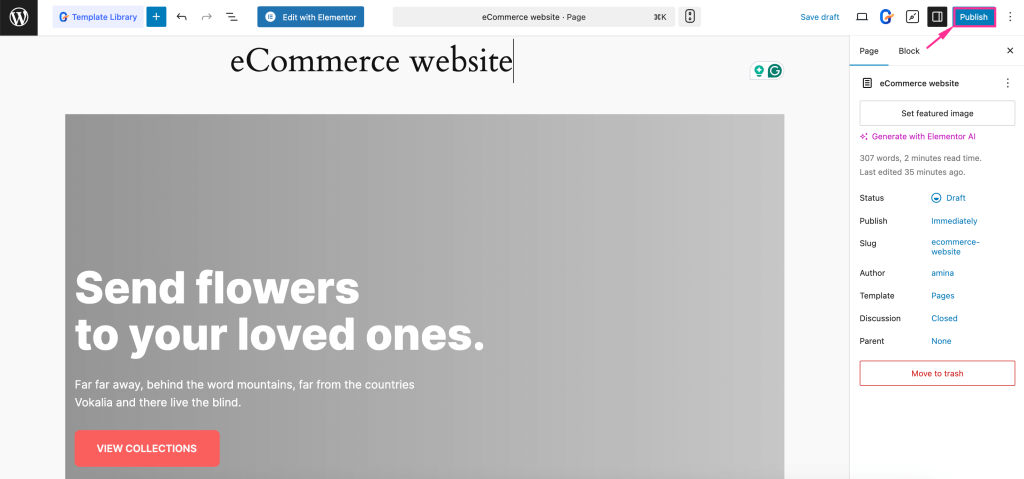
Step 7: Live eCommerce website.
In the last step, press the “Publish” button to make your WordPress eCommerce website live after wrapping up all the content, layout, and style customizations.
Why use GutenKit as an eCommerce website building solution?
Here are the reasons why you should consider GutenKit above other eCommerce website builders:
- Built for Gutenberg
GutenKit is designed specifically for the WordPress block editor, allowing you to build and customize eCommerce pages directly in Gutenberg without relying on external page builders. - Ready-made eCommerce templates
It offers a collection of prebuilt eCommerce templates and patterns that help you create shop pages, product sections, and layouts quickly while maintaining a professional structure. - No-code customization
With drag-and-drop controls and visual settings, you can customize content, layout, and styling without writing code. - Advanced layout and design controls
GutenKit extends native Gutenberg features with flexible containers, spacing controls, responsive settings, and alignment options. - Enhanced blocks for better presentation
The plugin includes advanced blocks such as mega menus, grids, and interactive elements that improve product visibility and user navigation. - Performance-optimized and lightweight
GutenKit is built to load only essential assets, helping your eCommerce website remain fast, responsive, and SEO-friendly.
FAQs
Do you need coding expertise to create a WordPress eCommerce website?
No, with WordPress and Gutenberg tools like GutenKit, you can build a custom eCommerce website using its free or paid customizable pre-built templates. GutenKit lets you create a website with drag-and-drop functionality.
Can you build an eCommerce website in Classic Editor instead of Gutenberg?
Yes, you can build an eCommerce website both in the Classic editor and the Gutenberg editor. Using ShopEngine or ElementsKit will allow you to create an eCommerce site in Classic Editor.
How much do you need to create an eCommerce website in WordPress?
WordPress is a free and open-source solution. And, GutenKit has both free and paid versions. So, you will need to pay only for hosting and a domain to create a eCommerce website in WP.
Wrapping up
So, you have found the easiest way to launch your eCommerce website in WordPress in minutes. Now it’s high time to take the initiative to build, customize, and live your eCommerce site with GutenKit.
You can use both pre-built templates and Gutenberg blocks of GutenKit. However, this guide is demonstrated using templates as we promised to hand you the simplest solution. So, adopt the right tool and template to create your eCommerce website and expand your digital presence.digital presence.
Leave a Reply